Follow these 5 steps to add an alert for the indicator on your computer;
Step 1: TradingView Alert Settings
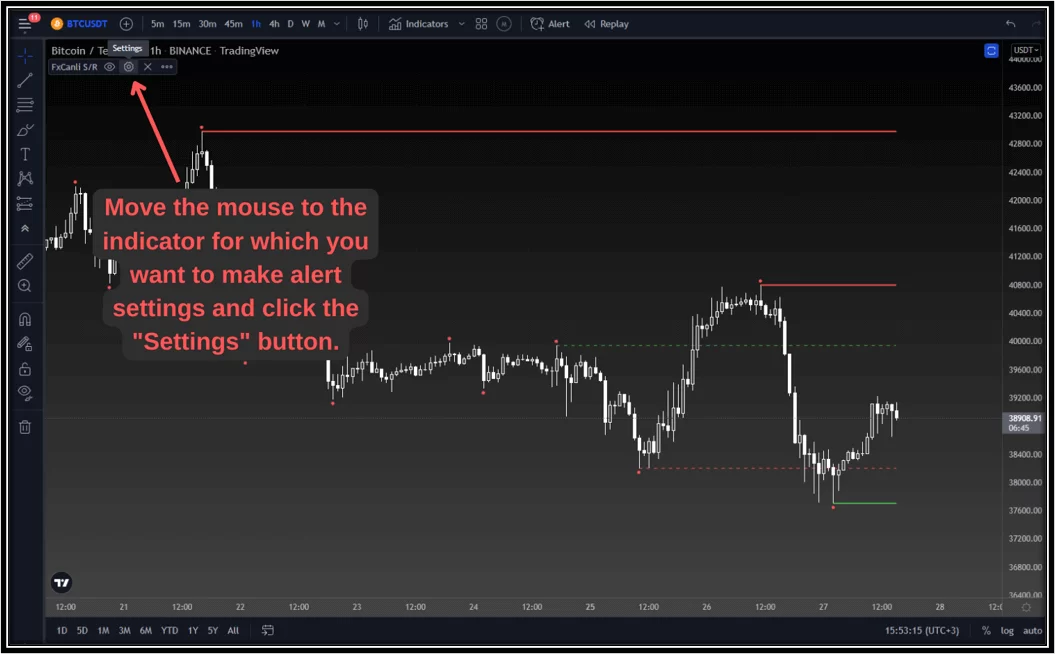
Before setting an alert on TradingView, you must make the settings of the indicator for which you want to set an alert. First, move the mouse to the indicator to which you want to add a Tradingview alert, and then press the “Settings” sign.
Step 2: TradingView Add Alert
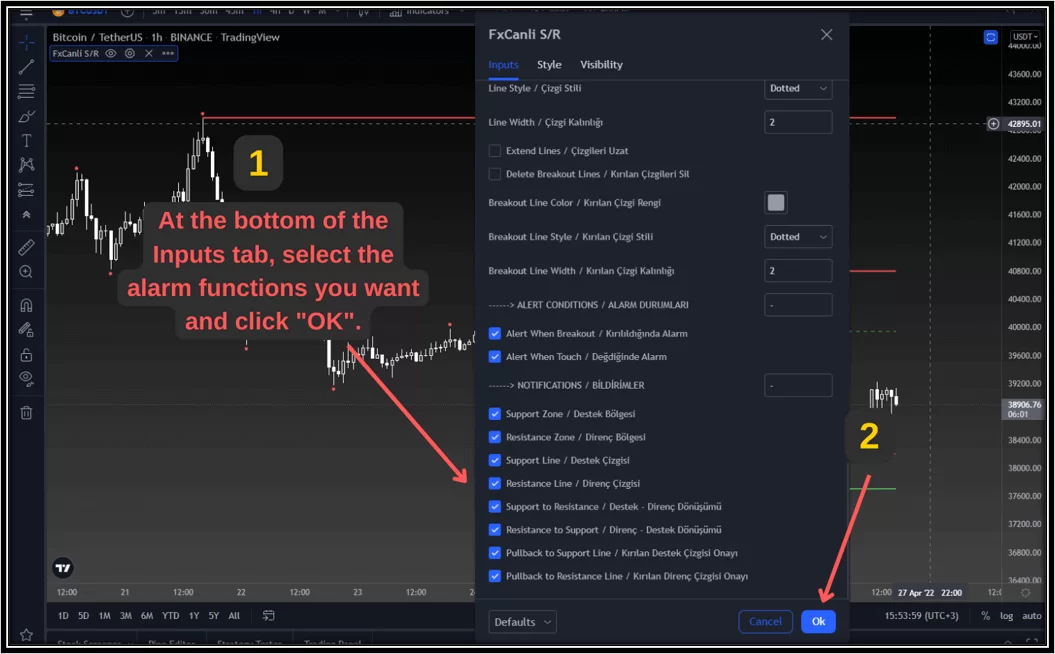
Then, on the “Inputs” tab, scroll to the bottom of the page and enable the alerts you want to add by checking the boxes next to them and click the “OK” button to complete the process.
Step 3: TradingView Add Alert
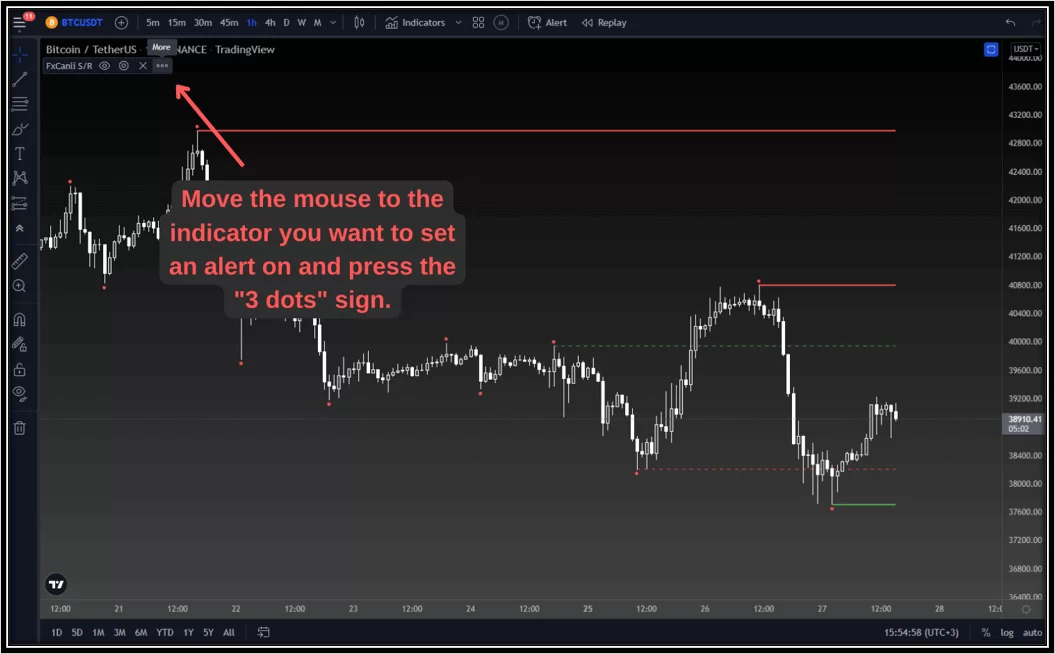
Move your mouse to the indicator for which you want to set an alarm and click once on the “3 dots” sign.
Step 4: TradingView Add Alert
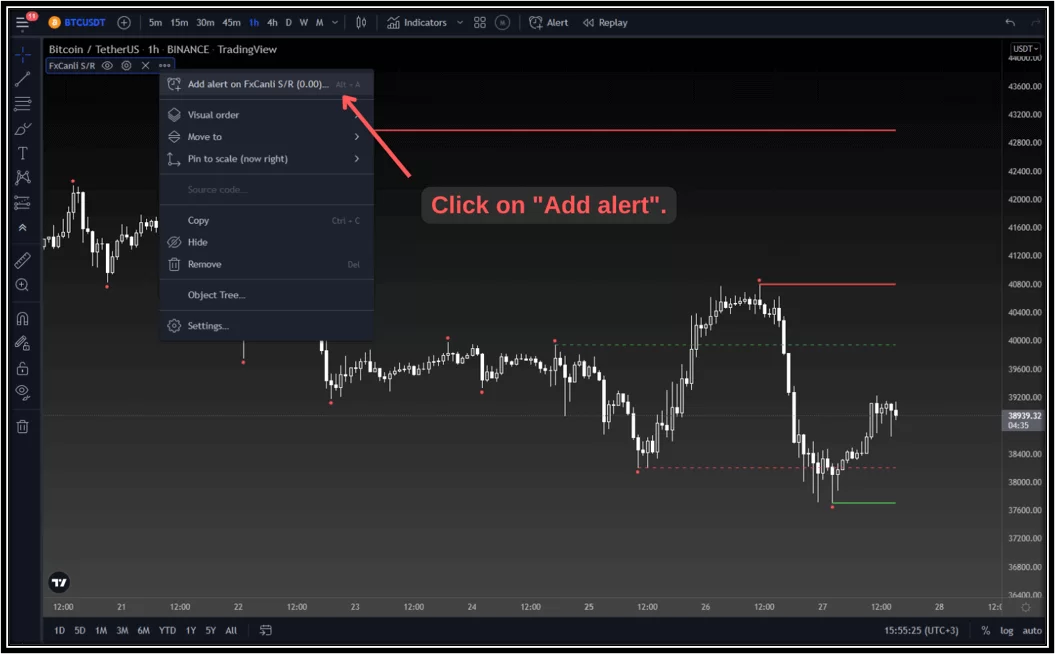
Then click on the “Add Alert …” option at the top
Step 5: TradingView Add Alert
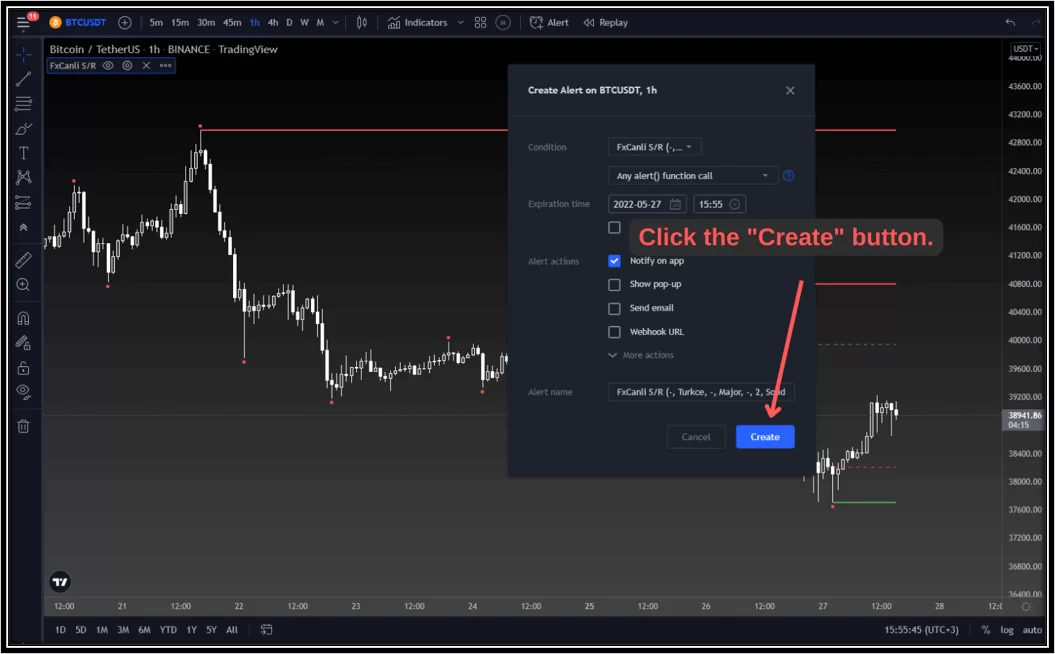
Finally, just click on the “Create” button at the bottom right.
Follow these 6 steps to set an alert on your indicator via your mobile device;
Step 1: Tradingview alert settings
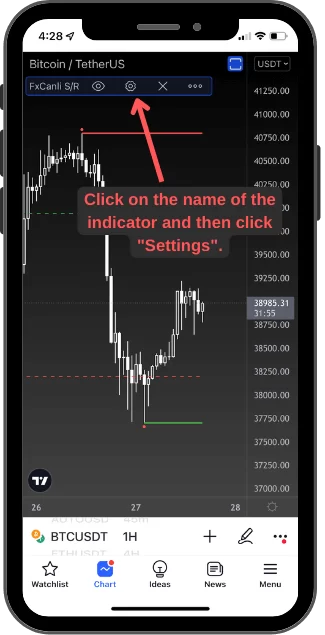
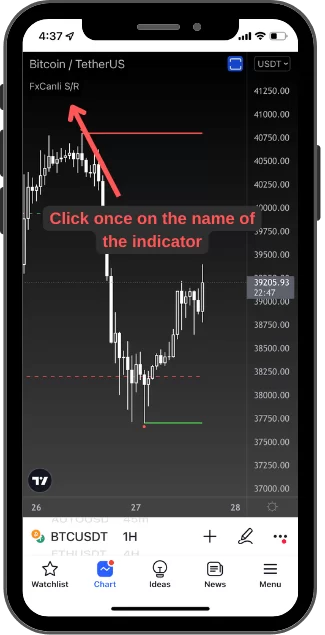
Click once on the indicator for which you want to set an alarm, and then click on the “Settings” sign.
Step 2: Tradingview alert settings
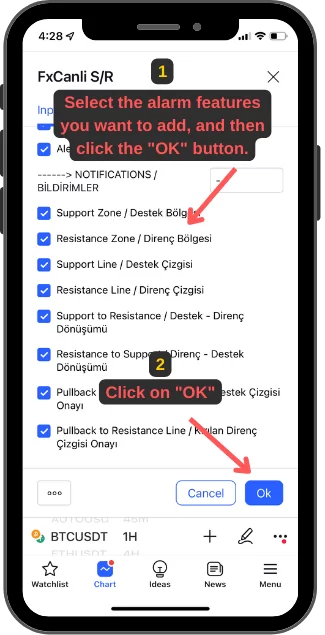
Then, on the “Inputs” tab, scroll to the bottom of the page and enable the alerts you want to add by checking the boxes next to them and click the “OK” button to complete the process.
Step 3: Tradingview alert settings
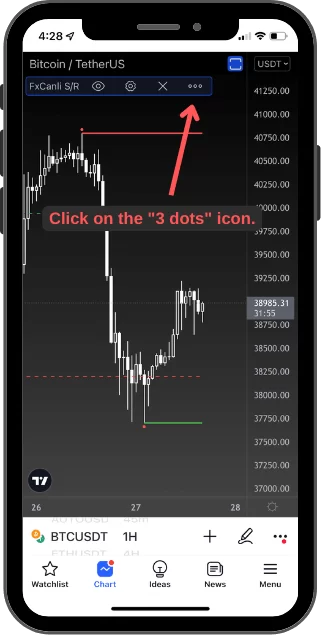
Click once for the alert in the upper left corner.
Step 4: Tradingview alert settings
Then click on the 3-dot icon.
Step 5: Tradingview alert settings
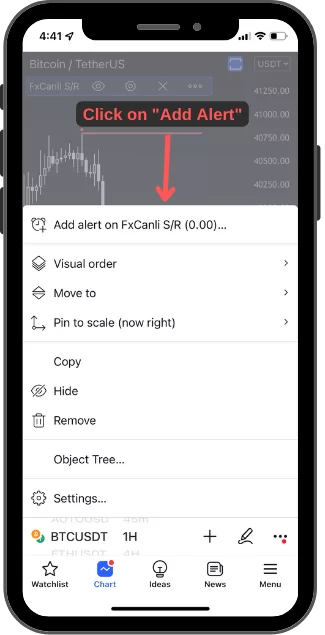
Click on add alert.
Step 6: Tradingview alert settings
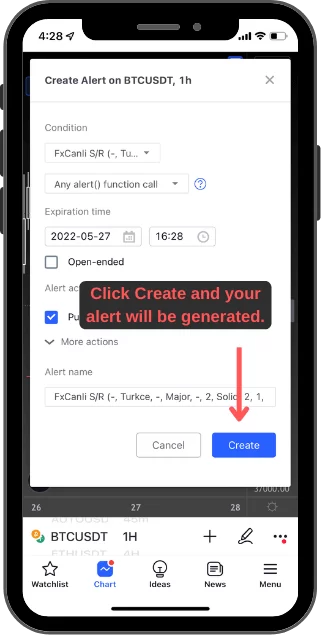
Finally, after you click the Create button at the bottom right, your alert will be created.
Important
The alarm you addwill only be added to that parity and the current time period.Example; If you performed these operations in the 1 hour time zone, your alarm will be set only in the 1 hour time zone.
Signup for FREE MetaTrader 4 Indicators & Scripts & Combos