To add an indicator to tradingview on your computer, follow these 3 steps in order;
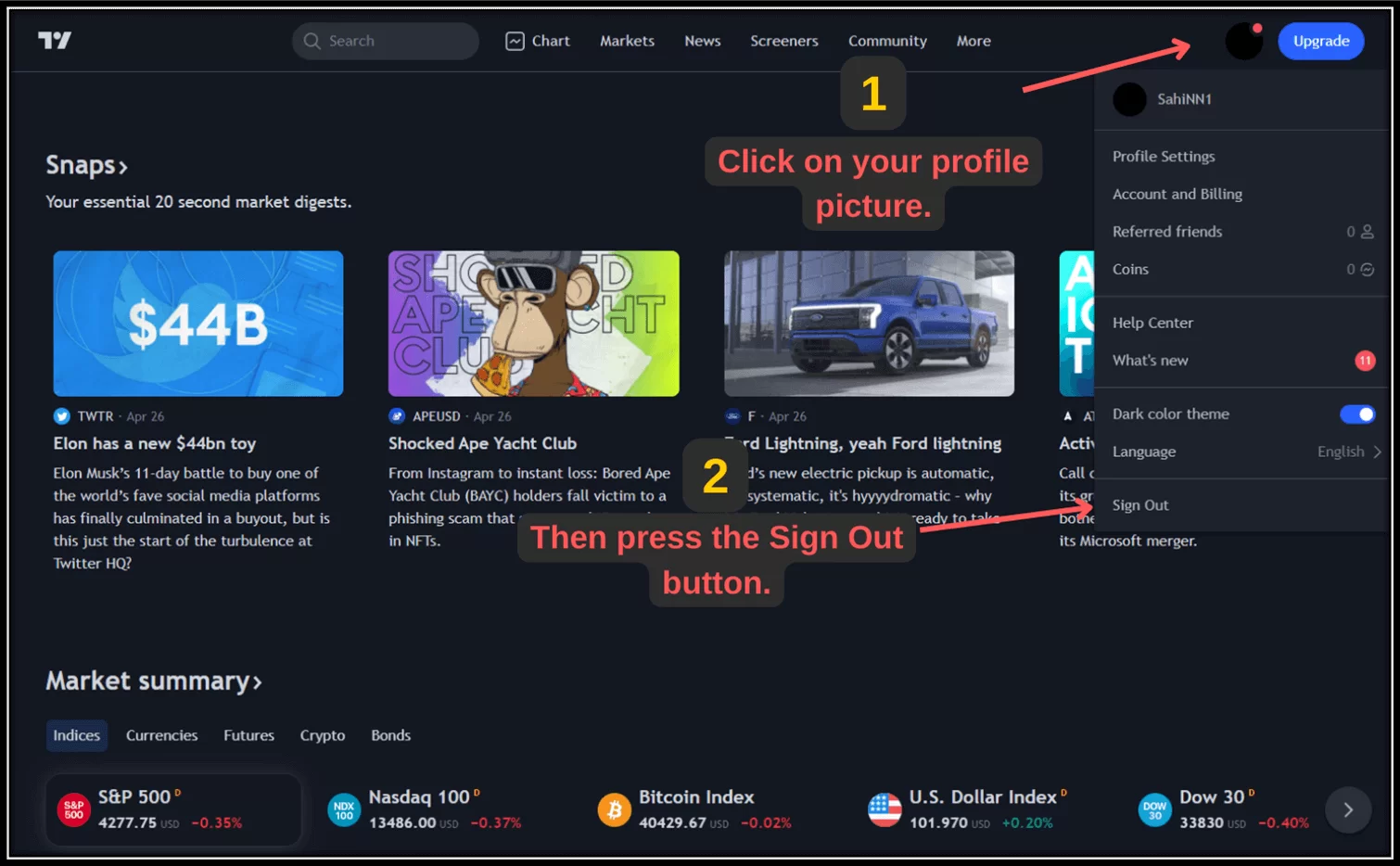
Step 1: Log out of Tradingview
First click on your TradingView profile photo and then click the “Logout” button in the pop-up window to log out of your account. Then log in to your account again.
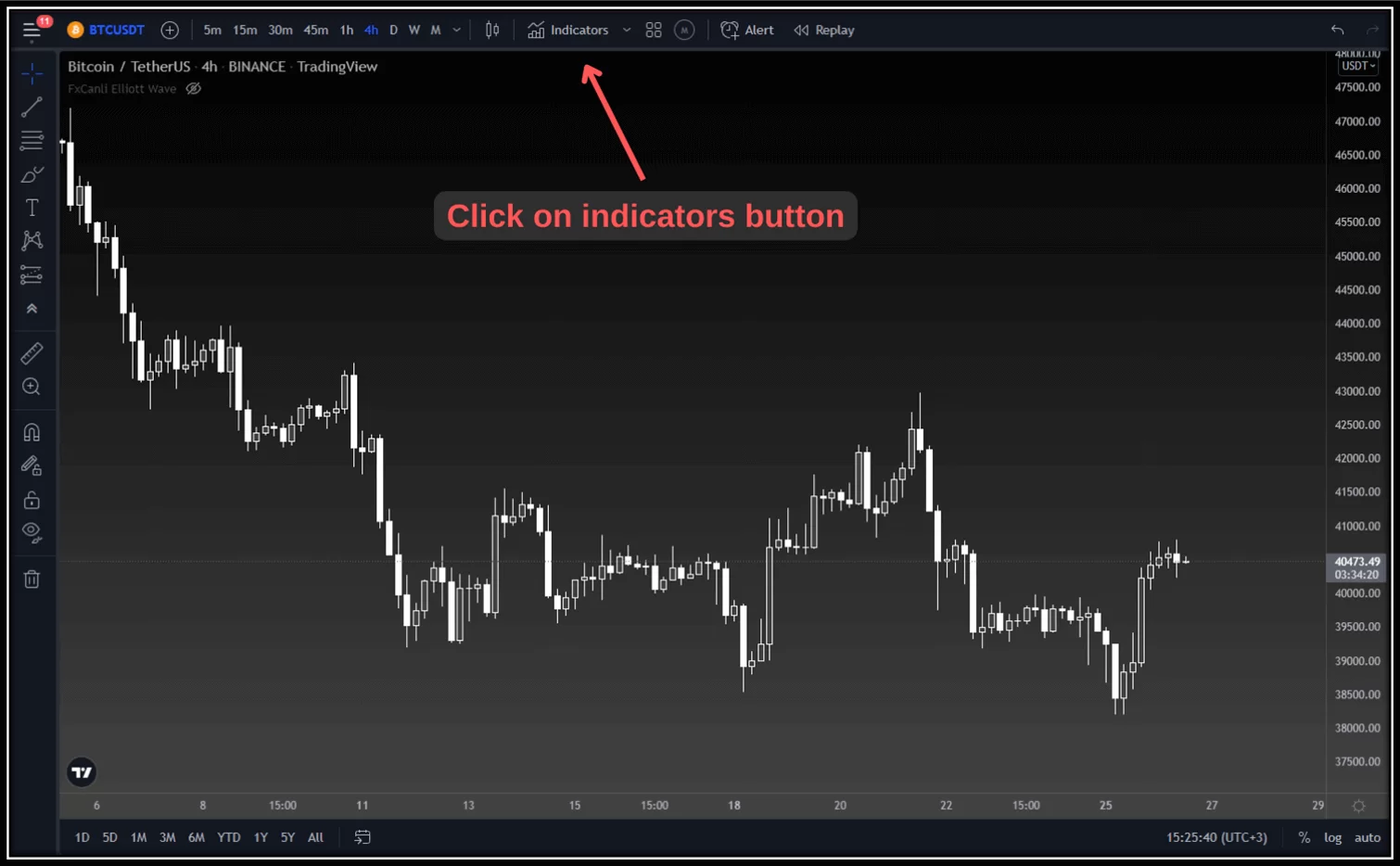
Step 2: Add indicator to TradingView
Click on the “Indicators” button in the top bar of TradingView.
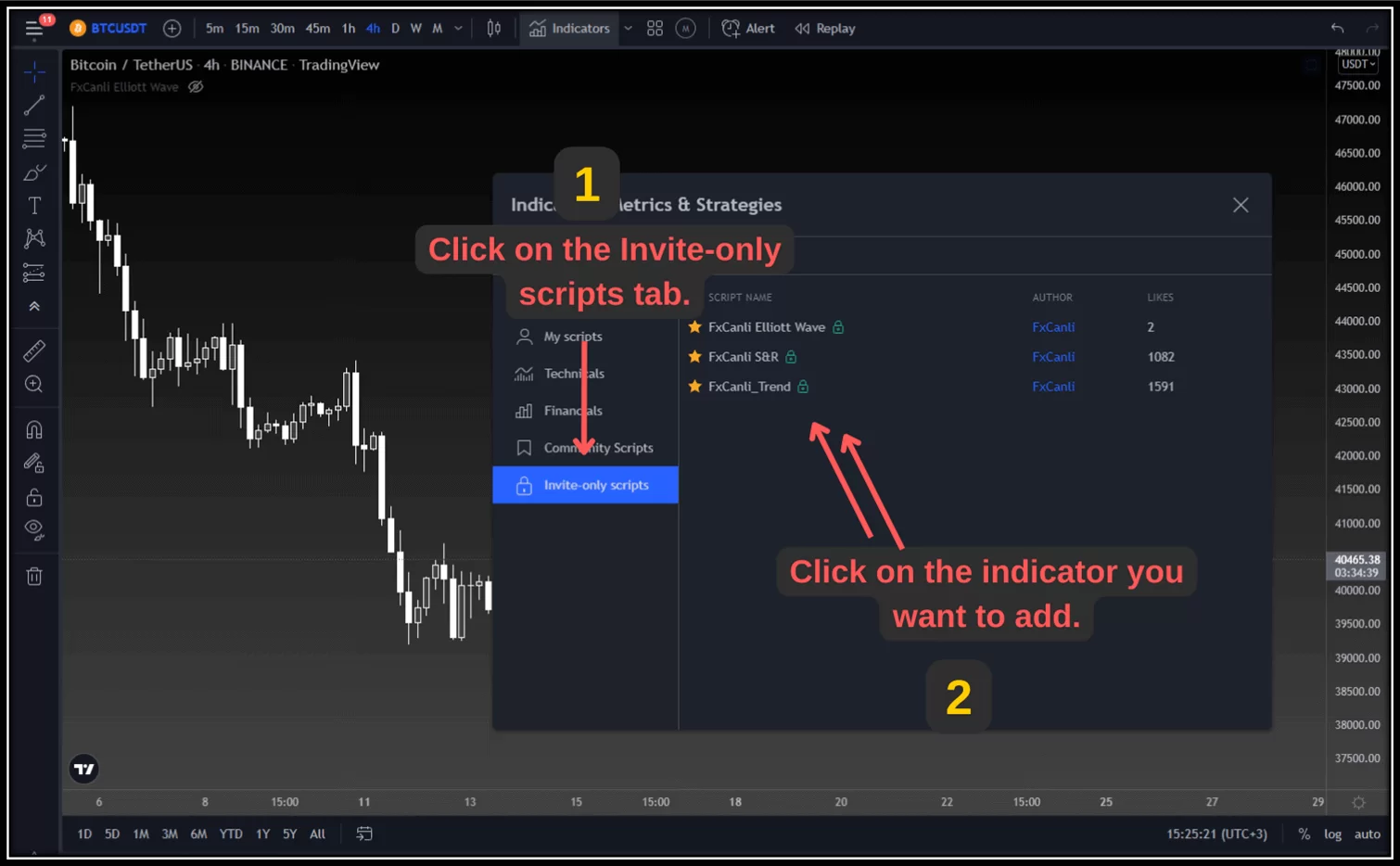
Step 3: Add indicator to TradingView
In the opened window, click on the “Invitees Only Access” tab and click on the FxCanli indicator you want to add to your chart from the menu on the right.
To add an indicator to tradingview on your mobile device, follow these 5 steps in order;
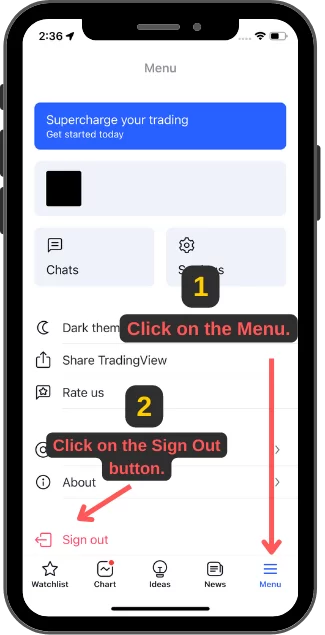
Step 1: Login to Tradingview
First, log out of your account by clicking the “Menu” tab and then the “Log Out” button. Then log in to your account again.
Step 2: Add indicator to TradingView
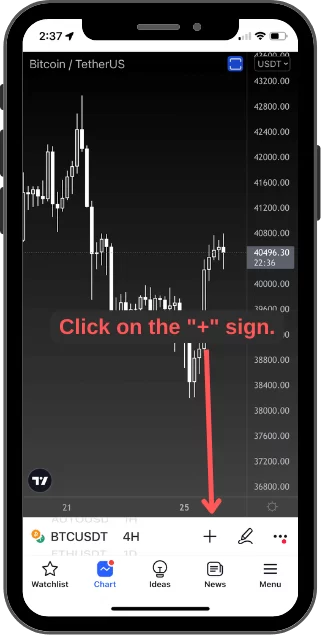
Click the “+” icon in the lower right corner.
Step 3: Add indicator to TradingView
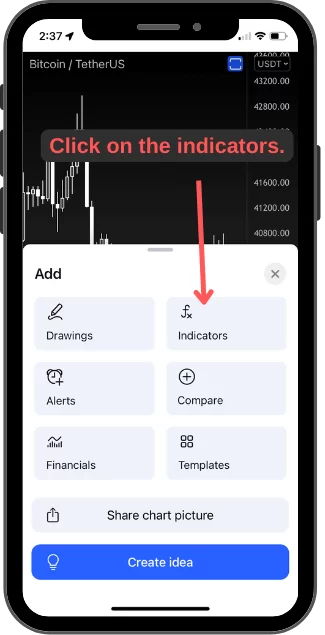
Then click “Indicators”.
Step 4: Add indicator to TradingView
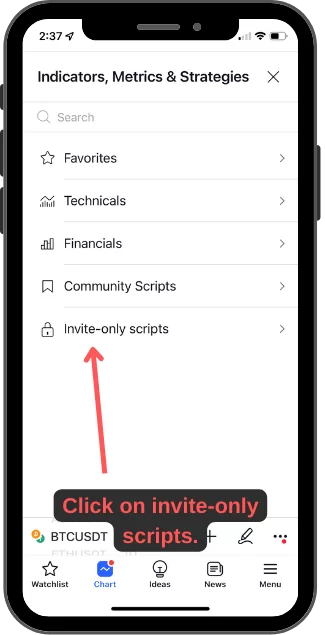
Click on “Invite-only scripts”.
Step 5: Addi indicator to TradingView
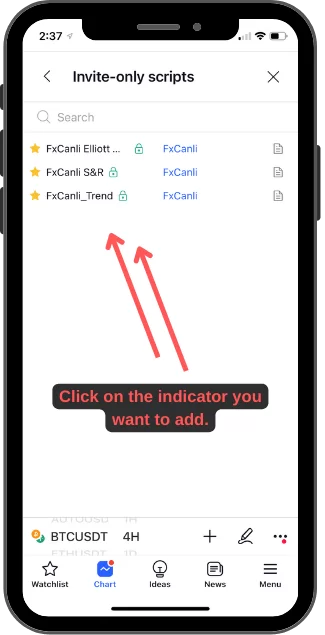
Finally, click once on the indicator you want to add to your chart.
Signup for FREE MetaTrader 4 Indicators & Scripts & Combos